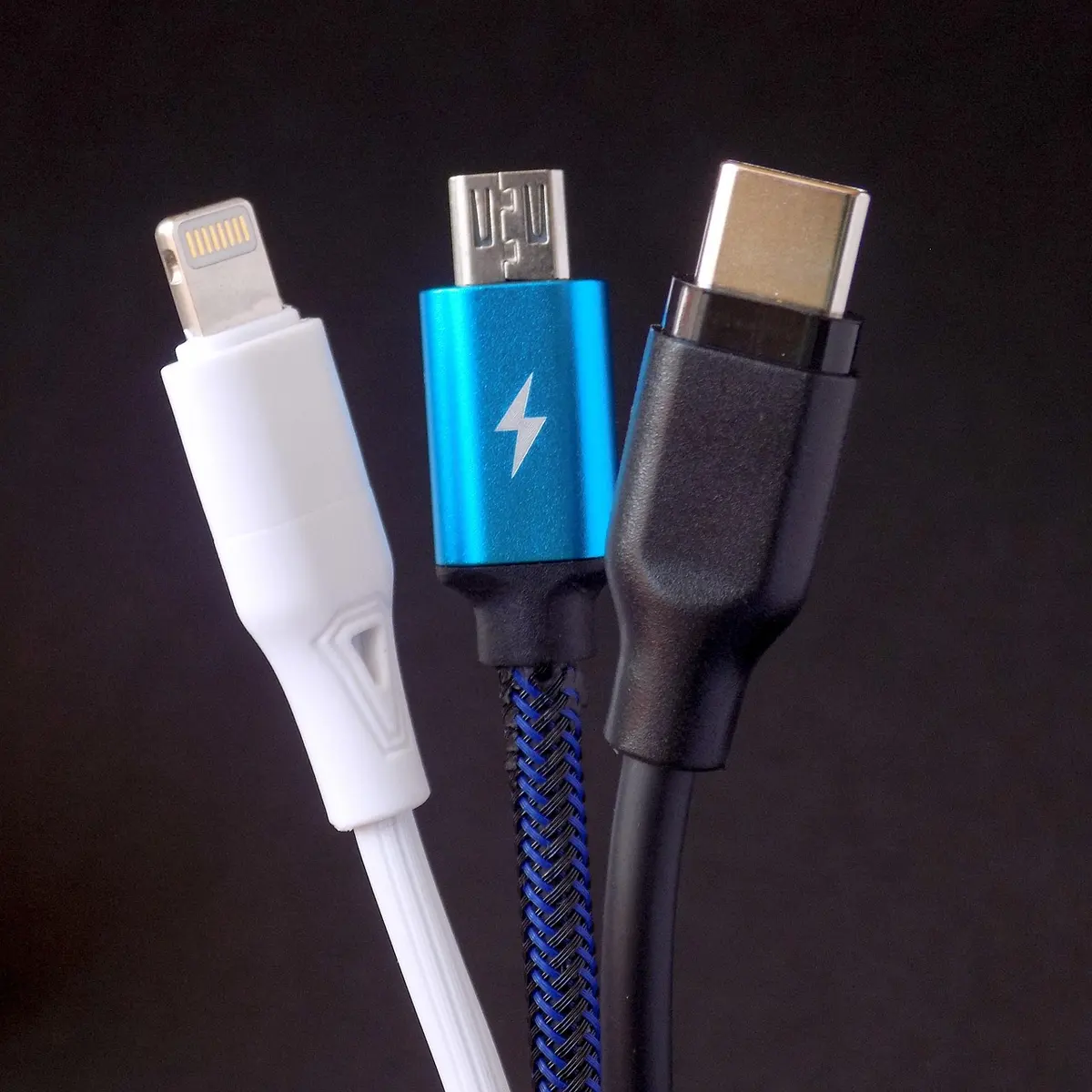
The Missing Ports Problem
Modern laptops are beautiful and thin, but at some point manufacturers decided we only need two ports and a dream. If you’ve ever needed to charge your laptop, connect a monitor, and plug in a flash drive simultaneously, you know exactly what I’m talking about.
A USB-C hub gives you back all those ports through a single cable. Pretty simple concept, but there’s a surprising amount of variation in quality and features.
What Ports Do You Actually Need?
The Essentials
- USB-C Power Delivery - so you can charge through the hub
- USB-A ports - for all the stuff that hasn’t switched over yet
- HDMI - external monitors
- SD card reader - if you do any photography
Nice to Have
- Ethernet - when WiFi isn’t reliable enough
- 4K @ 60Hz HDMI - smoother display output
- Multiple USB-C ports - increasingly useful
- VGA - those old conference room projectors still exist
My Top Picks
Best All-Around: Anker 555 USB-C Hub (8-in-1)
This is what I use daily. Has everything most people need without going overboard on ports you’ll never touch.
What you get:
- 2x USB-A 3.0
- 1x USB-C data
- 1x USB-C 100W charging
- 1x HDMI (4K @ 30Hz)
- 1x SD reader
- 1x microSD reader
- 1x Ethernet
The aluminum body actually helps with heat - these things get warm during heavy use and cheap plastic ones don’t handle it as well. Anker’s been making solid accessories for years and the 18-month warranty is reassuring.
[Check Price]
Best Budget Option: UGREEN 6-in-1 Hub
If you don’t want to spend much but need basic functionality, this delivers. I’ve recommended it to several people and nobody’s complained.
What you get:
- 2x USB-A 3.0
- 1x USB-C 100W PD
- 1x HDMI (4K @ 30Hz)
- 1x SD reader
- 1x microSD reader
It’s slim, portable, and works with any USB-C laptop. You’re not getting ethernet or extra ports, but for the price, it covers the essentials well.
[Check Price]
Premium Choice: CalDigit TS4
This is for professionals who genuinely need everything. It’s expensive, but if you’re running a serious workstation setup, the investment makes sense.
What you’re getting:
- 18 ports total
- 2.5Gb Ethernet
- 2x Thunderbolt 4
- 3x USB-C
- 5x USB-A
- DisplayPort 1.4
- SD/microSD UHS-II
- 98W laptop charging
Thunderbolt 4 certified means you can drive dual 4K monitors at 60Hz. Built like a tank. If this sounds like overkill, it probably is for you - but some people legitimately need this level of connectivity.
[Check Price]
Best MacBook Match: Satechi USB-C Slim Multiport
If aesthetic consistency matters to you (no judgment), this one actually matches MacBook’s space gray finish.
What you get:
- 2x USB-A 3.0
- 1x USB-C PD
- 1x HDMI (4K @ 60Hz)
- 1x SD reader
- 1x microSD reader
The 4K @ 60Hz output is the main technical advantage here - smoother than the 30Hz you get with cheaper hubs. Compact enough for travel.
[Check Price]
The 4K Resolution Thing
You’ll see these specs everywhere. Here’s what they actually mean:
4K @ 30Hz:
- Fine for documents, spreadsheets, static work
- Some people notice cursor lag
- Most affordable hubs use this
4K @ 60Hz:
- Noticeably smoother
- Better for video or anything with motion
- Usually requires a more expensive hub
If you’re using an external monitor as your main display all day, 60Hz is probably worth it. For occasional use or presentations, 30Hz is fine.
Power Delivery Guide
Check what your laptop needs before buying:
| Wattage | Works For |
|---|---|
| 60W | MacBook Air, ultrabooks |
| 85-100W | MacBook Pro 14”, most laptops |
| 100W+ | MacBook Pro 16”, gaming laptops |
If the hub can’t provide enough power, your laptop might charge slowly or not at all while in use.
Thunderbolt vs Regular USB-C
Regular USB-C hubs:
- Work with any USB-C laptop
- More affordable
- Usually limited to single 4K display
Thunderbolt docks:
- Multiple 4K displays supported
- More bandwidth for everything
- Requires Thunderbolt port (not all laptops have one)
- Significantly more expensive
Common Issues
Hub gets warm: Normal during heavy use. Aluminum hubs dissipate heat better than plastic.
Monitor not detected: Try a different HDMI cable first. Sometimes unplugging everything and reconnecting in a different order helps. I don’t know why, but it does.
Slow transfers: Make sure you’re using the USB 3.0 ports (sometimes color-coded blue internally).
Laptop won’t charge: Your hub’s power delivery might be too low for your laptop. Check both specs.
Quick Reference
| Situation | Recommendation |
|---|---|
| Just need basics | UGREEN 6-in-1 |
| Good all-around option | Anker 555 |
| MacBook + care about looks | Satechi Slim |
| Professional/power user | CalDigit TS4 |
Summary
Don’t pay for ports you won’t use, but don’t cheap out on something you’ll rely on daily.
For most people, the Anker 555 covers everything without breaking the bank.
On a tight budget, the UGREEN 6-in-1 is honestly fine for basic needs.
[Check Price]